 Segmentit team
To use SAM 3D without a local GPU, choose a hosted demo or service. Reconstruction runs on a server; your browser provides the interface. Choose a demo to explore the model, a studio to prepare objects, or an API to connect your own software.
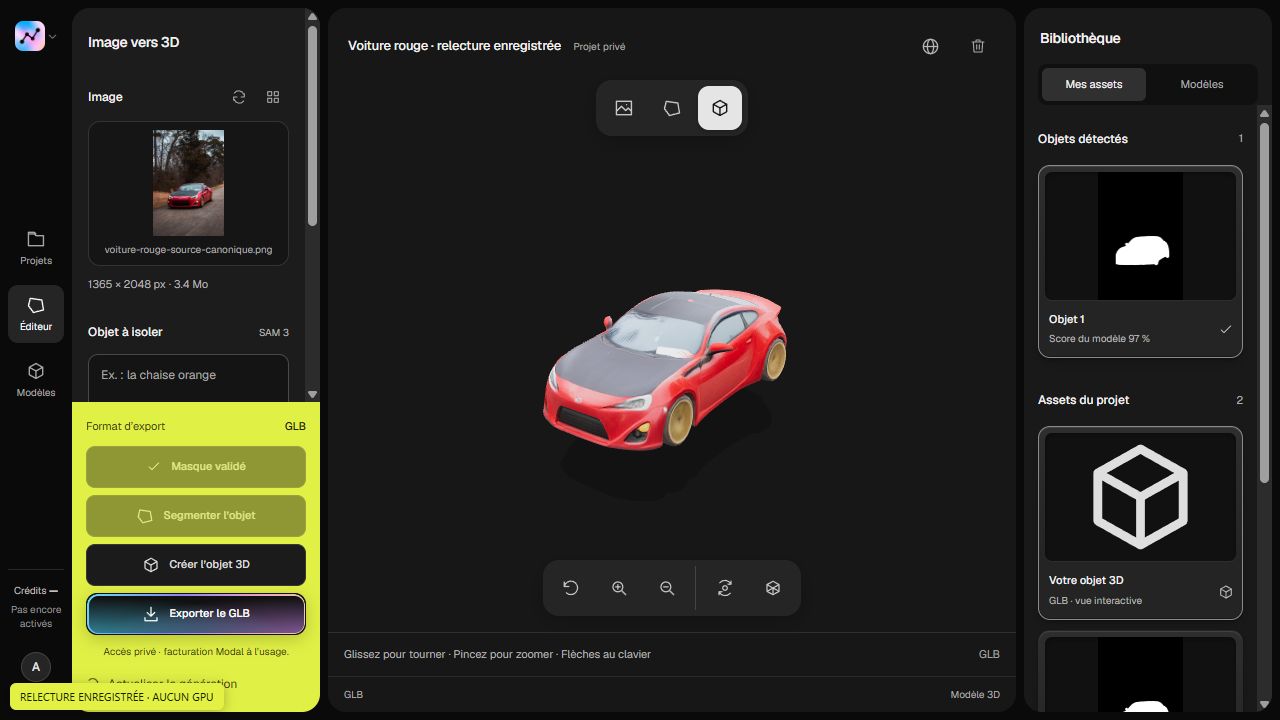
In Segmentit, the workflow starts with a photo and an editable object selection. 3D generation is paid and uses credits. Review the available plans and the cost displayed before starting a job. Using a browser does not mean that reconstruction runs on your computer.
What does SAM 3D reconstruct?
SAM 3D Objects concerns objects; SAM 3D Body is a separate model for people. The research paper describes estimating shape, texture and layout from one image.
One photo still leaves missing information. A chair’s back, underside and obscured legs must be estimated. Treat the result as a model to inspect, not a measurement or an exact copy of the real object. Our SAM 3D overview explains the technology; this guide focuses on getting from a photo to a usable file.
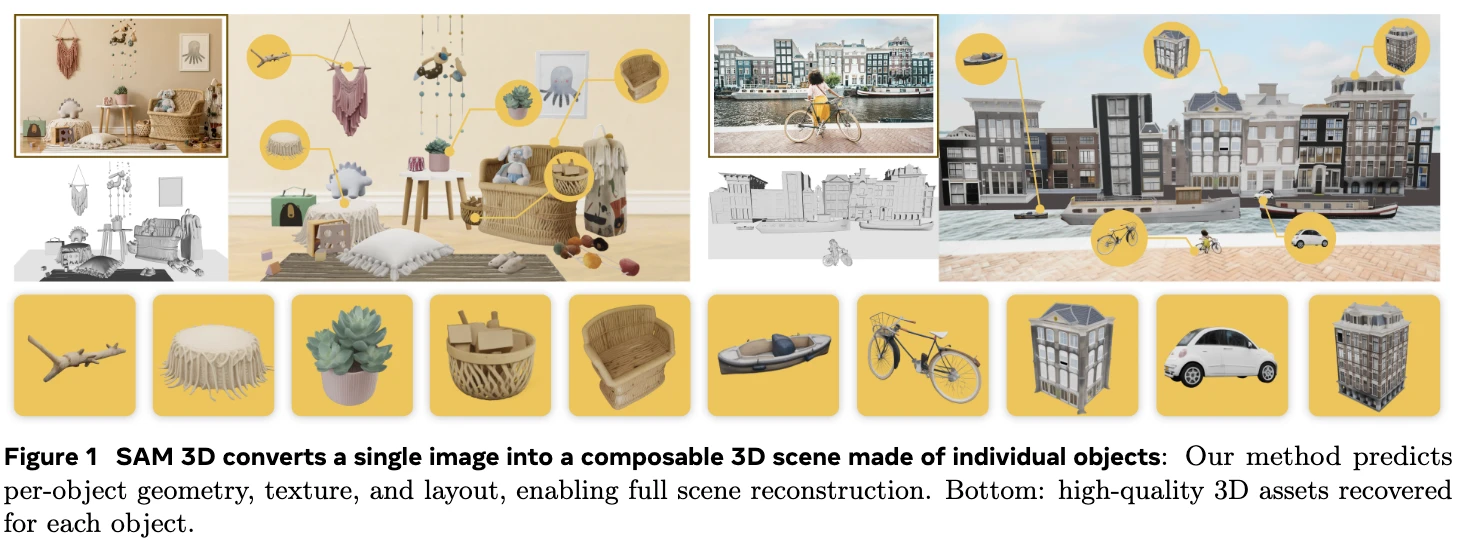
In this example published by Meta, the input photographs are paired with scenes and objects reconstructed by SAM 3D. These are results presented by the authors, not a generation performed in Segmentit. The original figure is annotated in English.
Choose a demo, a hosted studio, an API or local installation
| Route | Useful when | Check before starting |
|---|---|---|
| Meta’s official demo | You want to explore the model in a browser. | Check the current access conditions and download options in the demo. |
| Segmentit Studio | You want to select one object in a photo, edit its mask and inspect a GLB. | Sign-in and paid credits for 3D generation; inspect hidden surfaces afterwards. |
| Hosted third-party API | You want to connect generation to your own software. | Check account requirements, billing, supported inputs and output files. |
| Official local installation | You want to manage the inference environment yourself. | Check hardware, dependencies and access to model weights. |
For a hosted API example, consult fal’s documentation. Verify inputs, outputs, authentication and current prices before integrating it. Keep credentials on your server and plan how to handle failed jobs. This is a third-party option, not a Segmentit generation API.
For local installation, check the hardware and dependencies in the official setup guide and the access conditions for the model weights. Local installation means maintaining that environment yourself.
Segmentit’s role is the workflow around reconstruction: choose an object among others, correct its mask and review the result in a project. See photo to GLB for this specific use case. If you need a measured object rather than an estimated shape, first compare AI, photogrammetry and modelling.
Prepare the photograph and the mask
Use a sharp photograph with the whole subject visible and enough contrast to distinguish its edges. A three-quarter view can reveal depth that a frontal view hides. For a chair, include the legs and show some of the seat’s side. The object photography guide explains how to choose a reference.
The mask specifies which pixels belong to the object. Keep the handle of a mug, but remove the background seen through it. Inspect gaps between chair legs and thin parts before generating. Read how to refine a mask for inclusion points, exclusions and precise corrections.
Segmentit’s click selection uses SlimSAM in the browser, with WebGPU where available and a WASM/CPU fallback. Server-side SAM 3 analysis and SAM 3D reconstruction are separate operations that use credits. A clean selection helps define the subject; it cannot reveal a hidden surface or guarantee the resulting geometry.
Choose an image, isolate an object and prepare your next steps in the Studio.
 Segmentit
Start now.
30+ creatorsStudioUse SAM 3D in Segmentit, step by step
- Open the Studio and sign in. Import a photo into a project. Wait for the image and selection engine to finish preparing.
- Select the object. Click the subject, add missing areas and exclude unwanted background. Use a manual outline or mask corrections where needed.
- Review the selection. Check the complete silhouette, small parts and holes. Confirm which object you want to reconstruct.
- Request 3D generation. Check your account’s access and the credit cost shown on the generation control, then start the job. Importing a photo alone does not launch a reconstruction.
- Inspect and download. When the model is ready, open the 3D view and rotate it. Download the available GLB after checking the result. The generation guide covers this stage.
Editing a mask does not update an already generated model. A new reconstruction requires another explicit request; check its displayed cost before continuing. If you only need a cutout, export the selection as a transparent PNG. Segmentit’s current exports are GLB for 3D and transparent PNG for the selection.
Check the model in its destination
Inspect the back, underside, joins and thin parts. Look for fused chair legs, a filled handle or textures that only look convincing from the original angle. The model inspection checklist helps separate geometry issues from appearance issues.
Reopen your GLB in Orbit, Segmentit’s free viewer without registration, or test it in your destination, such as Blender or a Three.js scene. Check scale, orientation and materials there. The GLB and OBJ guide explains the formats; it does not add an OBJ exporter to Segmentit.
A successful download does not itself establish commercial usage rights. This guide makes no commercial-use promise for generated models; review the current terms and the rights in your source image before deciding how to use a result.
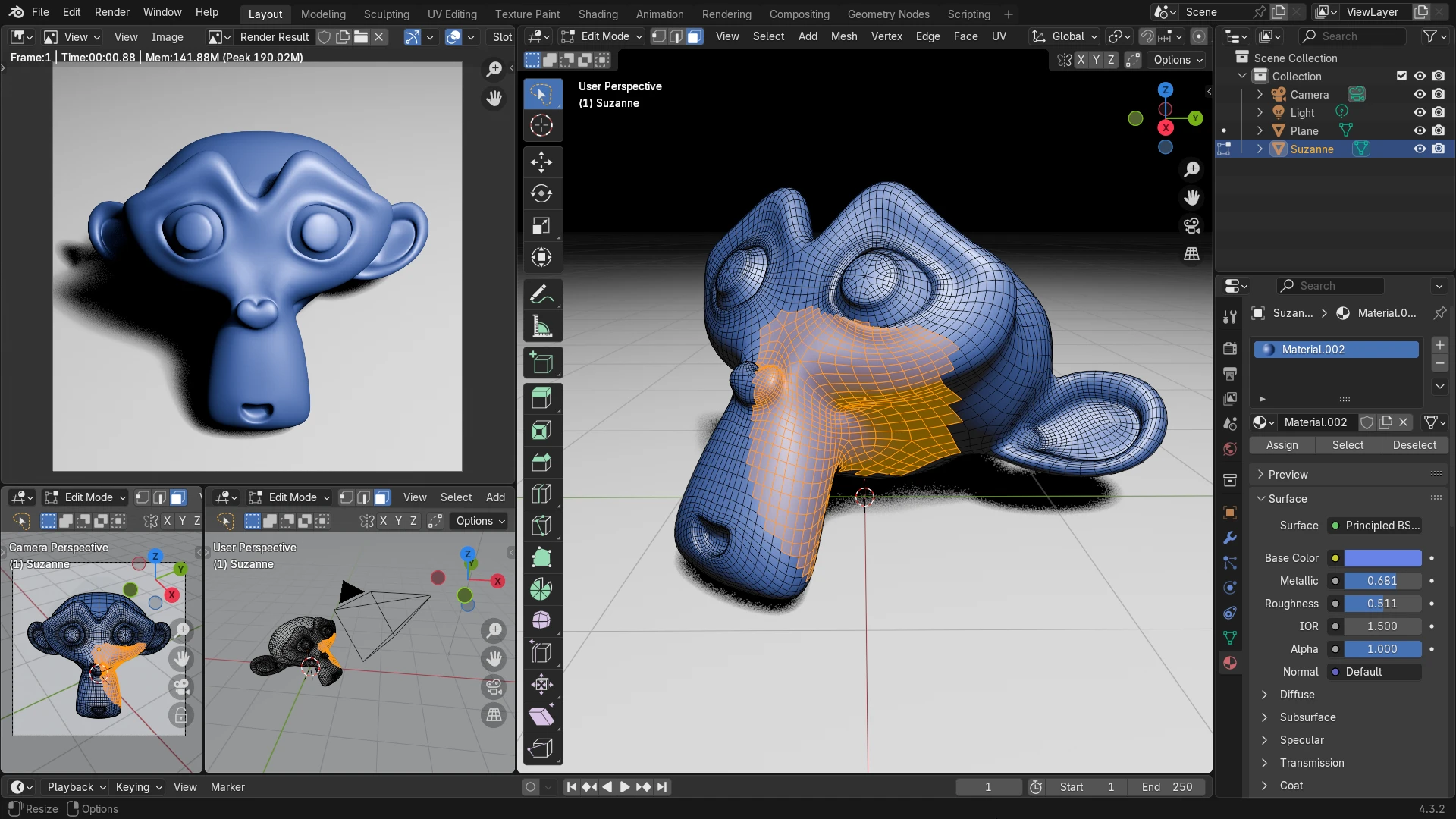
This Blender screenshot shows Suzanne, its sample model: the render on the left and the mesh on the right help distinguish appearance from geometry. This is not a SAM 3D result.
Questions before starting
Is SAM 3D online free?
A model being available does not make every hosted service free. Check each demo or provider’s current conditions. Segmentit Studio’s 3D generation is paid. Orbit is a free GLB viewer without registration; it does not generate a model from a photo.
Is Segmentit Meta’s official demo?
No. SAM 3D Objects is the reconstruction model developed by Meta. Segmentit is a separate product that uses it in a photo, mask and GLB workflow. Browser-based click selection and server-side 3D reconstruction are different steps.
Can I reconstruct several objects from one photo?
Yes: in Segmentit, prepare a separate selection for each subject. Use Add an object for a new subject and Add to mask to extend the current one. Rename the objects so you can recognise them, then choose the ones to generate and check the total credit cost shown.
Inspect each resulting model independently. Several selections do not turn one photograph into a complete, measured scan of a scene. Follow the multiple-object workflow to organise the selections and find the resulting assets in your project.
Do I need to install SAM 3D on my computer?
No, if you use a hosted demo or service such as Segmentit. You use the Studio in your browser; SAM 3D reconstruction runs on a server and is paid. To edit the exported model in Blender, install Blender separately and follow our photo-to-Blender guide.
Start with one object
Choose a photo you have the right to use and check the object’s outline before requesting generation. A credit pack can suit an occasional project; compare subscriptions if you expect to create objects regularly. Check the current plans against your expected usage.
Open the Studio — paid 3D generation. Already have a GLB to inspect? Open it in Orbit.